
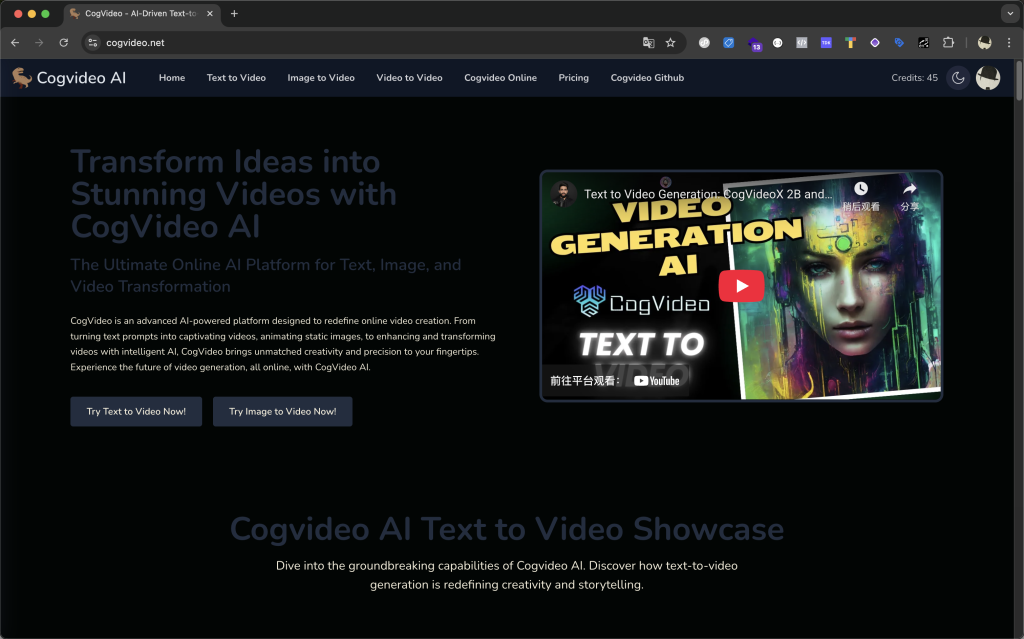

CogVideo is an advanced AI-powered platform designed to redefine online video creation. From turning text prompts into captivating videos, animating static images, to enhancing and transforming videos with intelligent AI, CogVideo brings unmatched creativity and precision to your fingertips. Experience the future of video generation, all online, with CogVideo AI.
Key Points :
What Exactly Is CogVideo? (And Why Should You Care?)
Most AI video tools are “black boxes.” You don’t know how they work, and you can’t own them.
CogVideo is different. It is open-source. This means the code is public. While developers can run it on their own powerful computers, sites like cogvideo.net act as a simple “wrapper” so you can use it in your browser without needing a $10,000 PC.
The big update: They recently launched CogVideoX-5B. Without getting too nerdy, this version fixed the “flickering” issues of older models. It’s smoother, faster, and understands human language much better.
Hands-On Test: Generating Your First Video
I went to cogvideo.net to see how user-friendly it really is. The interface is usually sparse—just a text box and an upload button. Don’t let the simplicity fool you; the engine underneath is heavy-duty.
Step 1: The Text-to-Video Test
I started with a classic cinematic prompt to test lighting and texture.
My Prompt:
“A cinematic wide shot of a cyberpunk detective walking through a rainy neon-lit street in Tokyo at night, highly detailed, 4k, realistic texture.”
The Result:
I was genuinely surprised. The reflections on the wet pavement were accurate. The neon signs didn’t look like gibberish scribble.
Related Posts
What I Learned:
- Speed: It took about 2-3 minutes to generate. Slower than image generators, but standard for video.
- Consistency: The character stayed the same shape throughout the clip (a common problem with other AIs is the character “melting”).
Step 2: The “Motion” Test (Where Most Fail)
Next, I wanted to break it. AI hates complex physics.
My Prompt:
“A glass of water falling off a table and shattering on the floor, slow motion.”
The Verdict:
It struggled a bit here. The glass fell, but the “shattering” looked more like the glass turning into liquid.
Key Tip: CogVideo is excellent at atmospheric motion (wind blowing, rain falling, camera panning) but still learning impact physics (crashing, breaking, fighting).
How to Write Prompts That Don’t Fail (My Cheat Sheet)
If you type “A dog” into CogVideo, you will get a nightmare. You need to guide the AI like a film director.
Through trial and error, I found this formula works 90% of the time:
[Subject + Adjectives] + [Specific Action] + [Camera Movement] + [Style/Lighting]
- Bad Prompt: “A cool car driving.”
- Good Prompt: “A vintage red Ferrari [Subject] speeding down a coastal highway [Action], drone camera following from behind [Camera], sunset lighting, cinematic 4k [Style].”
Image-to-Video: The Secret Weapon
This is actually my favorite feature on cogvideo.net. Instead of describing a scene from scratch, you upload a static image (generated by Midjourney or Flux) and tell CogVideo to move it.
How I did it:
- I uploaded a static image of a dragon sitting on a mountain.
- Prompt: “The dragon breathes fire, smoke rises, camera pushes in slightly.”
- Result: The dragon didn’t morph into a car. It stayed a dragon, and the fire effect was surprisingly realistic.
Why use this? It gives you total control over the “look” of the video because you aren’t relying on the video generator to design the character. You design it first, then animate it.
The “Local” vs. “Web” Dilemma
You will see people on Twitter bragging about running CogVideoX on their own computers. Should you do that?
Stick to the Website (cogvideo.net or Hugging Face Spaces) if:
- You are a casual user.
- You don’t have a massive gaming PC.
- You just want a few clips for social media.
Run it Locally (Download the code) if:
- You have a GPU with at least 24GB of VRAM (like an NVIDIA RTX 3090 or 4090).
- You hate waiting in queues behind other users.
- You want to generate uncensored or private content.
Common Mistakes to Avoid
- Overloading the Prompt: Don’t write a novel. The AI has a short attention span. Keep prompts under 40 words for the best clarity.
- Expecting Sound: Currently, CogVideo generates silent video. You will need to add sound effects in an editor like CapCut or Premiere afterwards.
- Ignoring Aspect Ratio: If you want a video for TikTok (9:16), specify “vertical video” or check if the UI has an aspect ratio toggle. Otherwise, it defaults to a wide landscape format.
My Final Verdict
So, what’s the bottom line?
If you are tired of paying for Runway or Pika, CogVideo is the best free alternative on the market right now.
It isn’t perfect. It won’t make a full Hollywood movie for you, and the physics can get wonky. But for B-roll, social media backgrounds, and creative experiments, it is incredibly powerful. The fact that the base model is open-source forces the whole industry to get better.
My Recommendation: Use an image generator (like Midjourney) to create your perfect scene, then use CogVideo’s Image-to-Video feature to bring it to life. That is the workflow that gives the most professional results.
What tools have you tried for AI video? Did CogVideo work for you, or was it a glitchy mess? Share your results (and your prompts!) in the comments below.
 Login with Google