
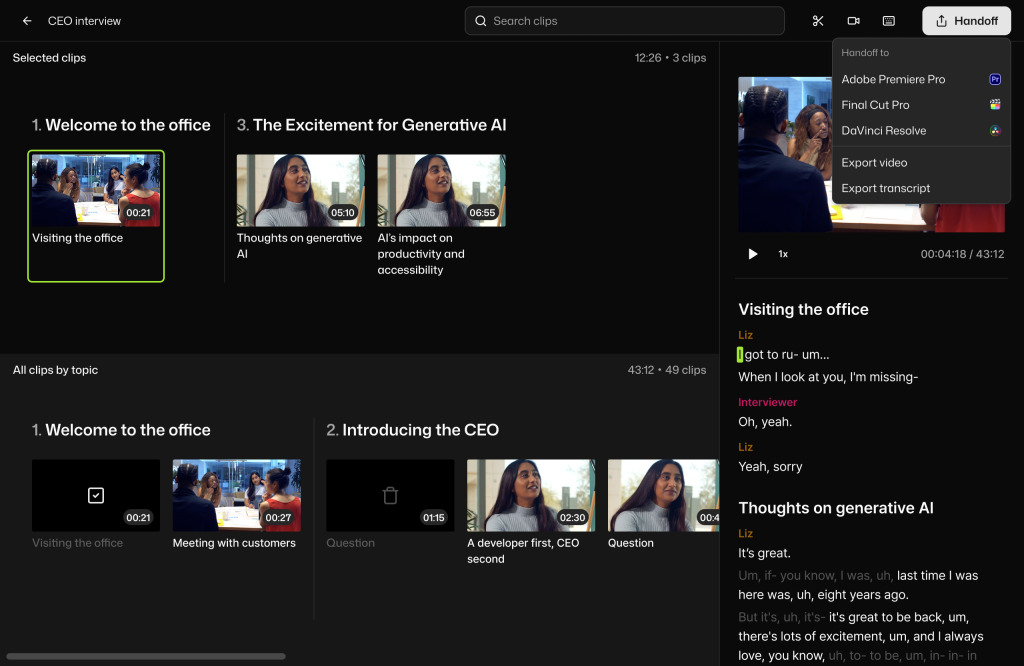

Selects is an AI-powered assembly edit tool that helps creators and teams speed up video prep. It auto syncs video and audio, organizes footage into scenes automatically, and builds a ready-to-edit assembly cut timeline in NLEs, including Premiere Pro, DaVinci Resolve, and Final Cut Pro. Perfect for podcasts, interviews, social content, and more, Selects turns long footage into ready-to-edit timelines. Whether you’re batch filming or trying to hit weekly uploads, Selects helps you get into the creative part of editing fast.
Key Points :
What Is Cutback Video? (And What It Isn’t)
Before we dive into the features, we need to clear up a common misconception. Cutback Video is not a browser-based “magic viral clip” generator like Opus Clip or Munch (though it can make clips).
Cutback is a workflow automation tool.
It is designed primarily as a plugin that lives inside Adobe Premiere Pro. This is a massive advantage for serious editors. It means you don’t have to upload massive 4K files to a website, wait for them to process, download them, and then re-import them. You stay in your timeline.
If you aren’t a Premiere user, Cutback also offers a standalone app called Cutback Selects. This allows you to prep your footage, let the AI chop it up, and then export an XML file to finish the edit in DaVinci Resolve or Final Cut Pro.
he “Rough Cut” Test: My Hands-On Experience
I threw a complex project at Cutback: a 45-minute, two-camera podcast interview with audio bleed and awkward pauses. Here is how it handled the three biggest pain points.
1. The Silence Remover & Auto-Chop
Usually, “silence removers” are aggressive. They chop off the ends of words, making the speakers sound robotic.
Related Posts
I found Cutback’s approach to be surprisingly natural. You can adjust the sensitivity (padding) to keep a split second of “breath” room so the conversation flows naturally.
How it works:
- Open the Cutback extension in Premiere.
- Select your raw footage.
- Click “Auto Rough Cut.”
- Within minutes, your timeline is populated with cuts. The dead air is gone.
2. The Multi-Cam Magic (The Real Time Saver)
This was the feature that sold me. If you’ve ever edited a multi-cam podcast, you know the misery of manually switching cameras every time a different person speaks.
Cutback analyzes the audio waveforms to detect who is talking. It then automatically cuts to the active speaker’s camera angle.
- The Result: It got about 90% of the cuts right on the first pass.
- The Fix: For the 10% it missed (mostly when people talked over each other), I could easily adjust the cut in the timeline. It turned a 3-hour job into a 15-minute review session.
3. Text-Based Editing & Captions
Cutback transcribes your footage immediately. This allows for Text-Based Editing. You can highlight a paragraph of text in the Cutback window and hit “Delete,” and it removes that section of video from your timeline.
It also generates animated captions. While Premiere Pro has built-in transcription now, Cutback’s captions are more “social media ready” out of the box, with preset animations that look like the ones you see on TikTok or Alex Hormozi videos.
Cutback Video vs. The Competition
This is the most common question I see on Reddit: “Why Cutback?”
Cutback vs. Autopod
Autopod has long been the king of Premiere Pro plugins for podcasts.
- Autopod: Excellent at multi-cam editing, but it feels a bit more like a “script” running in the background. It’s purely utilitarian.
- Cutback: Feels more like a creative assistant. It offers better visualization, text-based editing integration, and more robust captioning tools. Cutback is also aggressively updating with new features like “AI Zoom” (automatically punching in on cuts), which Autopod lacks.
- Winner: If you want pure speed for multi-cam only, Autopod is great. If you want a full suite (Rough cut + Captions + Zoom + B-roll search), Cutback is the better modern choice.
Cutback vs. Opus Clip
- Opus Clip: This is a browser tool for taking one long video and turning it into 10 viral shorts. It is not for editing full episodes.
- Cutback: This is for editing the full episode (and creating shorts from it inside your editor).
- Winner: Apples and Oranges. Use Cutback to edit your main YouTube video. Use Opus if you just want quick social clips from a finished URL.
Pricing & Value: Is It Worth It?
Cutback operates on a subscription model. While pricing can change (check their site for the latest), it generally falls into a “Pro” tier for individuals and a “Team” tier for agencies.
My take: If you are a freelancer charging $200+ per video, Cutback pays for itself in one single project. The time you save on the rough cut (3-4 hours) is worth significantly more than the monthly subscription cost.
However, if you only edit one video a month for a hobby channel, the manual route might still be your best bet to save cash.
So, What’s the Bottom Line?
My final verdict is that Cutback Video is currently the most robust “Assistant Editor” plugin available for Premiere Pro. It successfully bridges the gap between robotic automation and human creativity.
It doesn’t replace you. It just takes away the part of the job you hate—chopping silence and syncing cams—so you can focus on pacing, music, and storytelling.
My Advice:
Download the free trial (usually available on their site). Throw your messiest, longest raw recording at it. If it doesn’t save you at least 50% of your editing time, cancel it. But I have a feeling you’re going to keep it.
What’s your biggest frustration with editing long-form video? Have you tried Autopod or Cutback? Share your results in the comments below!
 Login with Google