
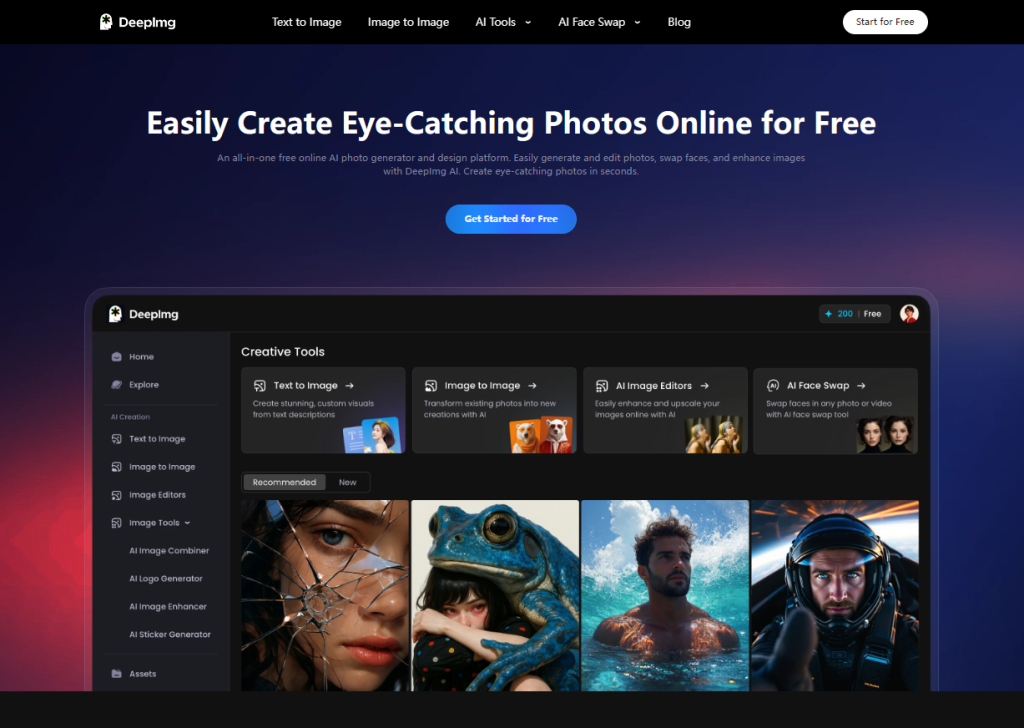

DeepImg AI is a free online photo editor packed with AI-powered tools to boost your editing speed and create stunning images effortlessly. DeepImg provides a no-threshold AI image generation experience that allows users to quickly generate high-quality images without watermarks. With no registration required, it’s easy to get started and let your creativity run wild!
Feature:
● AI Face Swap: Seamlessly swap faces in your photos with realistic and accurate results.
● AI Anime Generator: Transform your photos into stunning anime-style artwork.
● AI Background Remover: Effortlessly remove backgrounds from images with precision and speed.
● AI Image Style Transfer: Apply the artistic style of famous paintings to your photos.
● AI Sticker Generator: Create personalized stickers from your images.
Use Cases:
● Social Media Content Creation: Quickly create engaging visuals for your social media profiles.
Related Posts
● E-commerce Product Photos: Enhance product images with professional-grade editing tools.
● Graphic Design Projects: Incorporate AI-generated art and edited photos into your designs.
● Personal Photo Enhancement: Transform personal photos into stunning works of art.
● Creative Exploration: Experiment with different AI-powered tools to explore your artistic vision.
Key Points :
What Is DeepImg AI, and What Problems Does It Claim to Solve?
First things first, let’s get on the same page. DeepImg is a website with a suite of AI-powered tools designed to fix common image problems automatically. You don’t need any technical skills; you just upload a photo and click a button.
Its main promises are:
- AI Upscale & Enhance: Make low-resolution images bigger (up to 8x) without them looking pixelated.
- AI Photo Restoration: Fix scratches, tears, and fading on old photographs.
- Remove Background: Automatically cut the subject out from its background.
- Other Tools: It also has features for colorizing black-and-white photos, sharpening, and more.
My first impression of the site was that it’s clean and straightforward. There are no confusing menus, just big, clear buttons for each function. I like that. They get you right to the point.
My “Stress Test” Gauntlet: Pushing Each Feature to the Max
This is where the rubber meets the road. I didn’t want to use their perfect demo photos. I dug up some of my own problematic images to see how DeepImg would handle a real challenge.
Test #1: Restoring a Faded, Scratched Family Photo
For this test, I used a scanned photo of my grandmother from the late 70s. The color has faded, it’s a bit blurry, and there are a few noticeable dust specks and a light scratch across the top. It’s a prime candidate for restoration.
My Process: I simply uploaded the photo and selected the “AI Photo Restoration” model. The process took about 30 seconds.
The Result: I was genuinely impressed. The AI completely removed the scratch and dust specks, and it brought a lot of the lost color back into her face and the background. It definitely made the photo look sharper. However, I did notice that her skin texture looked a little too smooth, almost like a digital painting. This is a common quirk with AI restoration—it sometimes overcorrects and removes natural skin texture.
My verdict on restoration: It’s fantastic for fixing physical damage and color fading. For 90% of old family photos, this is a huge win. Just be aware that it can slightly alter faces, so it’s a trade-off between authenticity and clarity.
Test #2: Upscaling a Low-Res Image for Printing
Next up, a classic problem. I had a tiny, 400×400 pixel version of a logo I wanted to use on a larger graphic. If I just stretched it normally, it would look like a mess of jagged pixels.
My Process: I uploaded the logo and chose the “Upscale” feature. DeepImg offers 2x, 4x, and 8x options. I went with 4x, which would give me a 1600×1600 pixel image—plenty big for my needs.
The Result: This worked incredibly well. Instead of just making the pixels bigger, the AI understood the shapes and lines in the logo and redrew them cleanly. The edges were sharp, and the text was perfectly legible. It didn’t look like a blurry upscale; it looked like a native high-resolution image.
My key tip for upscaling: This feature works best on graphics, logos, and digital art. It can work on photos, too, but you might see some of that same AI “weirdness” appear if you push it too far (like 8x). For graphics, though, it’s gold.
Test #3: Removing a Messy Background from a Product Shot
For my final test, I took a quick snapshot of a coffee mug sitting on my very cluttered desk. Could DeepImg isolate the mug cleanly? Background removal is notoriously tricky, especially around curves and handles.
My Process: I uploaded the photo and hit the “Remove BG” button. That’s it. One click.
The Result: It was fast and about 95% perfect. It cut the mug out cleanly and even handled the tricky space inside the handle. There was one tiny spot near the bottom where it left a little bit of the wooden desk texture, but it was something I could fix in two seconds with a simple eraser tool.
My verdict on background removal: For a free, one-click tool, it’s amazing. It’s more than good enough for a quick social media post or a new profile picture. If you’re a professional photographer selling products on Shopify, you might still want the pixel-perfect control of Photoshop, but for everyone else, this is a massive time-saver.
DeepImg AI Pricing: Is the Free Version Actually Useful?
Let’s talk money. DeepImg operates on a credit system.
- The Free Plan: When I signed up, I got a handful of free credits to try everything out. The catch is that free downloads are often lower resolution and might come with a small watermark. It’s designed to give you a preview of the quality.
- The Paid Plans: You can either buy a pack of credits or subscribe to a monthly plan for more credits and features like higher resolution outputs and priority processing.
Is it worth paying for? My opinion: Yes, if you have a specific project. If you have 20 old photos you want to restore for a family album, buying a credit pack for a few bucks is an incredible value compared to professional restoration services. The free version is perfect for figuring out if the tool can handle your specific image before you commit.
Common Problems & How to Avoid Them (What Other Reviews Don’t Show You)
After digging through Reddit threads and my own testing, I ran into a few common complaints. Here’s how to deal with them.
- The “Uncanny Valley Face”: Sometimes, especially on very blurry photos, the AI has to guess what the face looked like. This can result in a “plasticky” or slightly “off” appearance.
- The Fix: Unfortunately, there’s no magic button here. Try using the “Enhance” tool instead of “Restore” to see if you get a more subtle result. Or, accept the trade-off: a slightly artificial face might be better than a blurry, unrecognizable one.
- “It Didn’t Fix My Type of Blur”: I found that DeepImg is great at fixing photos that are slightly out of focus or have “digital noise.” It’s less effective on severe motion blur (e.g., a fast car speeding by).
- The Fix: Set realistic expectations. AI can’t create data that isn’t there at all. If the subject is just a streak, there’s not much for the AI to work with.
- “My Background Is Still Messy”: The one-click removal is great, but it’s not infallible, especially with hair, fur, or semi-transparent objects.
- The Fix: Use the result from DeepImg as your starting point. It does 95% of the hard work. Then, you can pop that image into a free tool like Canva or Photopea to clean up the last 5% of tricky edges manually.
So, What’s the Bottom Line? Is DeepImg Worth Your Time?
After putting it through its paces, my final verdict is that DeepImg AI is absolutely legit and incredibly useful for specific tasks. It’s not magic, and it has limitations, but it delivers on its core promises with impressive results.
I think this tool is perfect for:
- The Family Historian: Anyone wanting to breathe new life into an old, faded photo album.
- The Casual Creator: Someone who needs to quickly resize a logo or remove a background for a social media post without learning a complex program.
- The “I Need This Fixed Now” Person: You have one photo you need to fix for a specific project, and you want it done in five minutes.
It might not be the right fit for professional photographers or graphic designers who need 100% perfect, granular control over every single pixel. They’ll likely stick with the Adobe suite or other pro-grade software.
For the rest of us? It’s a powerful tool to have in your back pocket. It solves frustrating, common problems quickly and easily. And for that, it gets a big thumbs up from me. 🙂
What do you think? Have you tried DeepImg or another AI photo tool? Share your results in the comments—I’d love to see what you’re working on
 Login with Google