
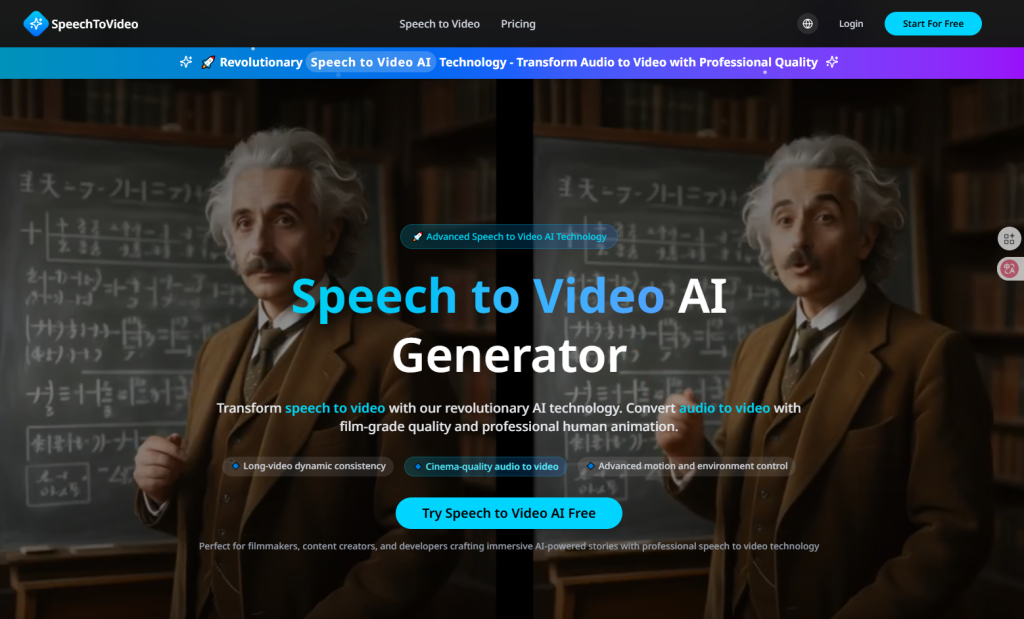



Revolutionary speech to video AI that transforms speech and audio to video with professional-grade content. Our advanced AI model delivers film-quality audio-driven human animation with advanced motion control and long-video dynamic consistency.
Advanced speech to video AI model for cinema-quality output
Professional audio to video conversion with motion control
Perfect for filmmakers and content creators
Key Points :
What is Speech to Video AI Generator? (And Why I Needed It)
Imagine having a brilliant conversation, a compelling voiceover, or an informative blog post. Now imagine transforming that audio or text into a dynamic video with relevant stock footage, text overlays, and background music – all automatically. That’s exactly what Speech to Video AI Generator does.
My Personal Content Creation Dilemma: The Audio-to-Video Gap
For years, my podcast episodes lived solely on audio platforms. I knew I was missing out on YouTube views and social media engagement, but the thought of manually syncing audio to b-roll, adding text, and finding music was exhausting. My audio content was getting no engagement visually, and I needed a solution that was fast and required zero video editing skills.
How This Tool Bridges the Gap: A Quick Overview
This tool isn’t just another “text-to-video” generator. It uniquely focuses on starting with your spoken word or written script, then intelligently pulls visuals, crafts scenes, and adds all the bells and whistles. It makes content repurposing an absolute breeze, especially if you already have a wealth of audio material.
Getting Started: Your First Video with Speech to Video AI Generator
My first step was always the same: how do I actually use this thing? I was pleasantly surprised.
Step 1: Navigating the Interface – It’s Simpler Than You Think
When I first landed on speechtovideo.net, I expected a complex dashboard. Instead, I found a clean, intuitive layout. The focus is immediately on getting your content in. There aren’t a million buttons or confusing menus. It’s exactly what I needed: direct and to the point.
Related Posts
Step 2: Uploading Your Audio (or Pasting Text)
This is where the magic begins. I had two options: upload an audio file (MP3/WAV) directly or paste my script/text. For my podcast clips, I always went with the audio upload. The platform handles the transcription automatically, which is a massive time-saver. If you’re turning an article into a video, the “paste text” option is perfect.more_verteditmore_vert
Step 3: Choosing a Theme or Template (If Available)
While the tool primarily focuses on generating visuals based on your input, you can often select from various templates or themes to set the overall aesthetic. This is how to add visuals to audio content automatically with a consistent style. I usually pick something clean and professional for my podcast clips.
The Magic Happens: Auto-Generating Your Video Content
Once I uploaded my audio, I just hit “Generate Video” and let the AI do its work. It felt like I was watching a mini-producer go to town on my content.
AI Analysis: How It Interprets Your Speech
The AI quickly transcribes the audio, then analyzes the text for keywords and concepts. It’s impressively good at understanding the context of your spoken words. This is the core of its intelligence, allowing it to then search for relevant visuals.
Visual Selection: From Keywords to Scenes
Based on its analysis, the AI automatically selects stock video clips and images from its library. This is where AI generates video from a voice recording in a truly hands-off manner. If I said “space exploration,” it would pull up rockets and astronauts. If I talked about “financial markets,” I’d see charts and graphs.
First Look: Previewing Your Auto-Generated Video
Within minutes (for shorter clips), my first draft was ready. I could immediately preview the video, seeing how the visuals synced up with my speech. This initial preview is a huge help for quick edits.
Customizing for Impact: My Essential Editing Tips
While the AI is smart, it’s not always perfect. This is where my input makes the video go from “good enough” to “great.”
Swapping Out Visuals: When the AI Gets It Wrong (and How to Fix It)
Sometimes, the AI picks a visual that’s technically related but doesn’t quite fit the nuance of my message. For instance, if I talk about “innovative ideas,” it might show lightbulbs, but I wanted something more abstract. This is how to quickly correct the AI when the syncing or visual relevance isn’t perfect. I simply clicked on the scene and swapped it for a more fitting image or video clip from their extensive library. It’s incredibly easy.
 Login with Google