
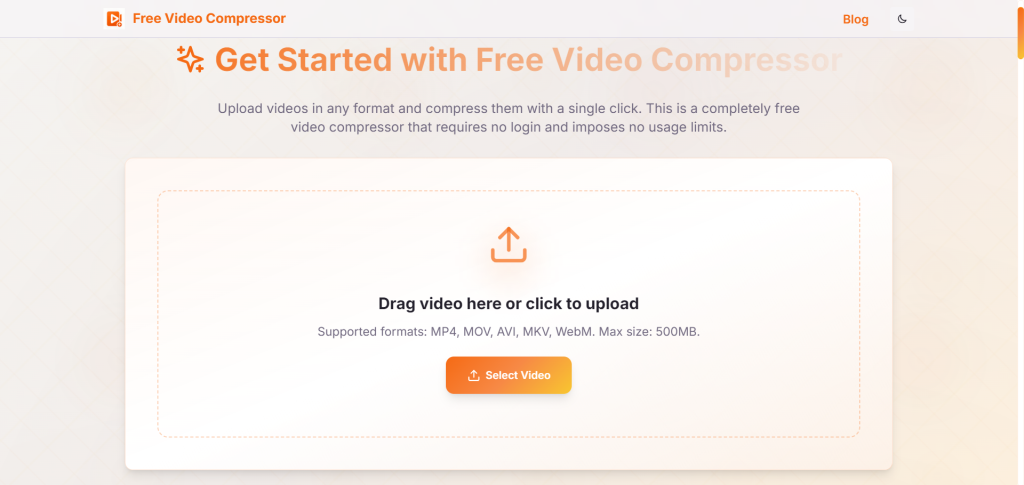

Free Video Compressor is built with a privacy-first, browser-native architecture. Unlike traditional cloud-based compressors, all processing happens locally through modern WebAssembly and WebCodecs technologies. This ensures instant processing, zero data exposure, unlimited usage, and stable performance even for large files. Our focus is not only reducing video file size — but doing it transparently, predictably, and sustainably, without charging users for essential tools.
Key Points :
Why This Tool? (And Not the Big Guys)
If you Google “video compressor,” you get hit with big names like VEED or Clideo. They are great, but they usually have a catch:
- They slap a giant watermark on your video.
- They force you to create an account to download your file.
- They limit you to small files (like 500MB).
I found that Free Video Compressor Online strips away the bloat. It’s a utility tool. It does one thing—make files smaller—and it does it without asking for your credit card.
Step-by-Step: How I Compressed a 4K Video for Email
I didn’t want to give this tool an easy ride, so I tested it with a heavy 4K video file (approx 150MB) to see if I could get it under 25MB for Gmail.
Here is the exact workflow I used:
1. The Upload
Navigate to the homepage. You’ll see a clean “Drop files here” box.
My experience: I dragged my MP4 file in. The recognition was instant. There was no lagging or “waiting for server” wheel spinning immediately, which is a good sign.
2. Dialing in the Settings (The Important Part)
This is where most people mess up and ruin their video quality. The tool gives you options. Here is what they mean:
Related Posts
- Elon Musk SHOCKED by Google’s New AI: The Jaw-Dropping Video Generator That Will Replace Hollywood!
- Google Bets $75B on AI Domination—Can It Outrun Microsoft & Amazon?
- Piktochart AI Poster Maker
- Tron: Ares Unleashed: Jared Leto’s AI Revolution Hits Hard in New Trailer!
- Chat With Website Ai Chatbot in Python App [Source Code]
- Size (Resolution): This changes the dimensions (e.g., 1920×1080 to 1280×720).
- My Tip: If you are sending a video to be watched on a phone, scale it down to 720p. You will save massive amounts of space and nobody will notice the difference on a small screen.
- Quality (CRF/Bitrate): This controls how much data the compressor throws away.
- My Tip: Stick to High or Medium. Only choose “Low” if you are desperate to squeeze a long video into a tiny attachment.
3. The Compression Process
I clicked the button.
The Result: The tool processed the 150MB file down to 18MB.
Time Taken: About 45 seconds (this will vary based on your internet speed and computer).
The Quality Test: Did it Turn into a “Potato”?
Numbers are great, but how does it look?
I played the original 4K file side-by-side with the compressed 18MB version.
- The Good: On my laptop screen, the difference was barely noticeable. The colors remained accurate.
- The Bad: In fast-motion scenes, I saw a tiny bit of “artifacting” (blocky pixels), but only because I was looking for it.
For a free tool? It passed the test.
The “Safe Zone” Cheat Sheet
Don’t guess your settings. Use this cheat sheet based on where you are posting the video:
| Platform | Recommended Resolution | Quality Setting | Goal File Size |
| 720p or 480p | Medium | < 16 MB | |
| Discord (Free) | 720p | Medium | < 8 MB (hard limit) |
| Email (Gmail) | 720p | High | < 25 MB |
| YouTube/Web | 1080p (Original) | High | N/A (Speed focused) |
Common Mistakes to Avoid
I’ve compressed thousands of videos. Here are the traps to avoid:
- Don’t double-compress. Never take a file you already compressed and run it through again. It will look terrible. Go back to the original source file.
- Don’t kill the audio. Some tools strip audio to save space. Make sure your audio bitrate stays above 128kbps if the tool allows that level of control (Free Video Compressor Online handles this automatically).
- Check the file extension. Ensure you are exporting to MP4. It is the universal standard. If you compress to FLV or WEBM, your recipient might not be able to open it on their iPhone.
So, what’s the bottom line?
My final verdict is that Free Video Compressor Online is currently one of the best “bookmark-worthy” utilities for casual users.
It bypasses the greedy paywalls of the big competitors and delivers a clean, small MP4 file without a watermark. It’s fast, it’s honest, and it works.
What tools have you tried that ruined your video quality? Drop a comment below and let me know if this one worked for you!
 Login with Google