
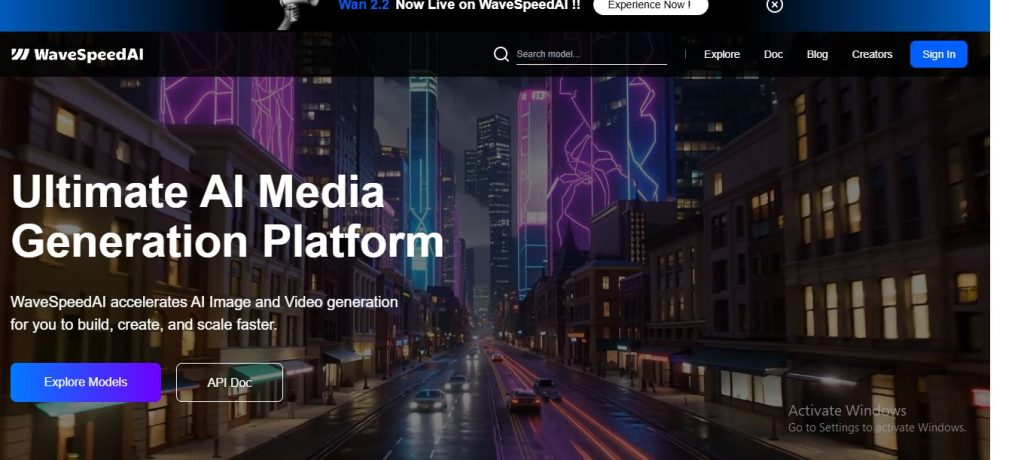

WaveSpeedAI is the ultimate platform for blazing-fast AI-powered image and video generation. Whether you’re a marketer, content creator, entrepreneur, or developer, WaveSpeedAI helps you build, create, and scale visual content with incredible speed and precision.
With advanced generative models and an intuitive interface, WaveSpeedAI empowers you to:
· Instantly generate high-quality visuals for social media, ads, websites, and more.
· Produce AI videos from text, prompts, or templates – no technical skills required.
· Customize your content with brand colors, AI voiceovers, avatars, and animations.
· Save hours of production time and reduce creative bottlenecks with automated workflows.
· Collaborate, edit, and export content effortlessly to suit any platform or campaign.
From ideation to execution, WaveSpeedAI turns your creative vision into high-performing media at scale — faster than ever before.
Key Points :
Related Posts
First, Let’s Be Real: The Nightmare of Manual Video Clipping
Before we get into the tool, let’s all admit the pain. My old workflow looked something like this:
- Re-watch the entire 1-hour podcast recording.
- Jot down timestamps of potential “clip-worthy” moments.
- Import the giant video file into a video editor like Premiere Pro.
- Find the timestamp, make the cuts, and isolate the clip.
- Format it to a 9:16 vertical ratio.
- Painstakingly transcribe and create animated captions.
- Add a headline, progress bar, and maybe some emojis.
- Export.
- Repeat 5-10 more times.
This is easily a 4-5 hour job, and by the end of it, I never want to hear the sound of my own voice again. This is the problem WavespeedAI claims to solve.
The WavespeedAI Experience: A Step-by-Step Walkthrough
I signed up for a trial and got to work. The whole process breaks down into a few key stages.
Step 1: Uploading and First Impressions
The dashboard is clean and straightforward. You can upload a file directly or drop in a YouTube link. I chose to upload my 4GB video file.
I clicked “Get Magic Clips,” and a progress bar appeared. For my 58-minute video, the processing took about 16 minutes. Not bad at all. This is when the AI is transcribing the entire video, analyzing the conversation for interesting topics, and identifying potential clips.
Step 2: The “Magic Clips” Reveal – How Smart is the AI?
This is the moment of truth. When it finished, Wavespeed presented me with 15 potential clips. It automatically pulled a title for each one based on the conversation, provided a summary, and even gave each clip a “Virality Score.”
The quality of the AI’s choices was… surprisingly good. I’d say about 12 out of the 15 clips were genuinely usable starting points. It successfully identified moments where we explained a key concept, told a short story, or had a strong back-and-forth.
It wasn’t perfect, though. A couple of clips started or ended awkwardly, cutting off a thought mid-sentence. But as a first pass, it saved me the hours I would have spent hunting for these moments myself.
Testing the “Virality Score”: Gimmick or Genius?
Wavespeed gives each clip a score out of 100. Honestly? I’d take this with a huge grain of salt. The clips it rated highest (90+) were typically ones where I asked a direct “how-to” question. The lower-scored clips were sometimes more nuanced or story-based, which can also perform well.
My take: Use the score as a loose guide to prioritize which clips to edit first, but don’t treat it as a guarantee of social media fame.
Step 3: Editing and Customization (This is Where Most Tools Fail)
Selecting a clip takes you into the editor, and this is where Wavespeed impressed me. It’s super intuitive.
You can see the full transcript on the side and just highlight or un-highlight words to change the clip’s duration. This is way easier than dragging tiny handles on a timeline.
The customization options are solid:
- Captions: You can choose from various animation styles (like the popular Alex Hormozi style), change colors, and add a background.
- Branding: I easily uploaded my brand’s hex codes and font to create a template.
- B-Roll & Overlays: The AI automatically adds some stock B-roll and emojis. I found myself removing about half of them as they were a bit generic, but it was easy to do.
The Caption Test: How did it handle my tech jargon?
The transcription was about 95% accurate out of the box. It nailed most of the conversation but stumbled on the specific tech terms. For example, it transcribed “server-side rendering” as “server side rendering.” A small thing, but it required a quick manual fix. Editing the text was as simple as clicking on the word and typing.
Speaker Detection: Did it know who was talking?
Yes. It automatically identified that there were two speakers and could label them. The auto-resizing feature, which keeps the current speaker in the center of the frame, worked pretty well. There were a few moments in quick back-and-forth dialogue where it got a bit jumpy, but you can disable this feature if you prefer a static shot.
The Big Question: WavespeedAI vs. Opus Clip
You can’t talk about Wavespeed without mentioning its biggest rival, Opus Clip. I’ve used both extensively. They are very similar, but have key differences in philosophy.
- Where WavespeedAI Wins: I find its editor to be more flexible and user-friendly, especially for making fine-tuned adjustments to the start and end points of a clip. The template and brand kit management also feels a bit more robust.
- Where Opus Clip Has the Edge: In my experience, Opus sometimes does a better job of identifying the emotional or controversial hooks in a conversation. Its AI feels slightly more attuned to finding “hot takes,” which can be great for engagement.
Ultimately, they are both excellent. My advice is to use the free trial for both, upload the exact same video, and see which tool’s output and workflow you prefer.
The Bottom Line: Who Should Actually Use WavespeedAI?
So, what’s my final verdict?
WavespeedAI is a fantastic tool for a specific group of people: podcasters, coaches, marketers, and content creators who are sitting on a goldmine of long-form video and don’t have the time to mine it themselves.
It’s not a magic “one-click” button that produces perfect videos with zero effort. You still need to be the creative director. But it automates the 80% of manual labor that burns us all out, freeing you up to focus on perfecting the final product. For me, it turned a dreaded half-day task into a quick, almost enjoyable one-hour session. And that’s a win I’ll take any day. 🙂
What tools have you tried for this? I’d love to hear what’s working for you in the comments below.thumb_upthumb_down
 Login with Google