
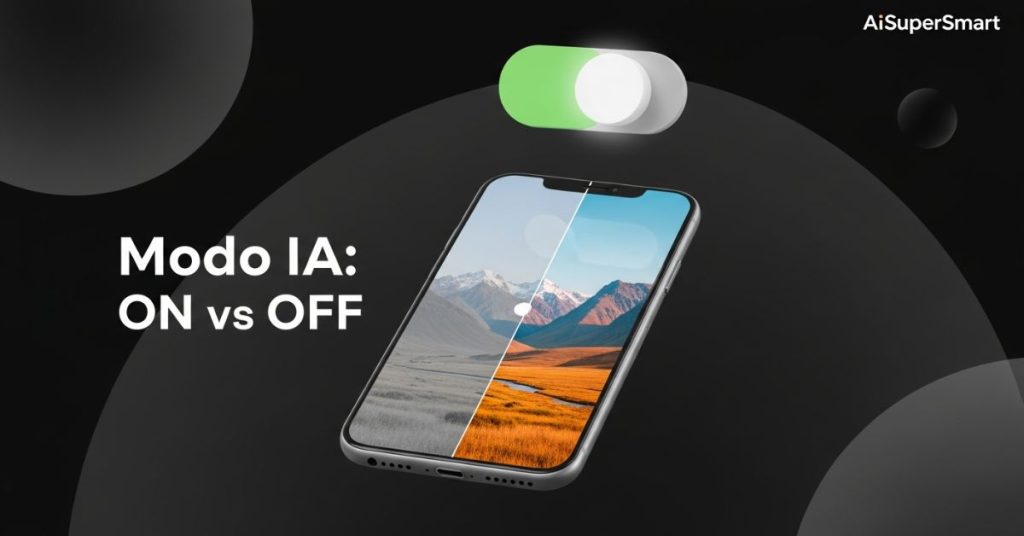
You’ve probably seen it. That little button at the top of your camera app labeled “AI” or “Modo IA.” Maybe you leave it on because, well, “Artificial Intelligence” sounds fancy.
But then you take a picture of your dinner, and the burger looks orange. Or you snap a photo of a park, and the grass looks radioactive green.
I’ve spent the last month shooting hundreds of photos with “Modo IA” toggled on and off to figure out exactly what it does. Here is the honest truth about when this feature is a lifesaver—and when it ruins your shot.
⚡ Key Takeaways: The “Too Long; Didn’t Read”
If you’re in a rush, here is my final verdict:
- Best For: Sunsets, architecture, food (sometimes), and gloomy days that need a color pop.
- Worst For: Portraits of people (skin looks waxy), professional product photography, and bright sunny days (too much contrast).
- My Golden Rule: Leave it ON for social media snaps. Turn it OFF if you plan to edit the photo yourself later.
- Pro Tip: If you see the icon change to “Food” or “Greenery” and you don’t like the look, just tap the “X” on the detected scene icon to disable the effect for that specific shot without turning off the whole mode.
First, What Actually is “Modo IA”?
Don’t let the marketing fool you. It’s not a supercomputer redesigning your photo.
“Modo IA” is basically an automatic filter app built into your lens.
When you point your camera, the software analyzes the frame. It recognizes objects like “Cat,” “Blue Sky,” “Text,” or “Flower.” Once it identifies the subject, it tweaks three main things:
- Saturation: It boosts colors (usually making them way more vibrant).
- Contrast: It makes shadows darker and highlights brighter.
- Sharpening: It tries to make edges crisp (sometimes too crisp).

The Hands-On Test: The Good, The Bad, and The Orange
I took my phone out into the real world to show you exactly how this impacts your images.
1. The “Greenery” Test (Nature)
I pointed my camera at a slightly dull patch of grass on a cloudy day.
- Without Modo IA: The grass looked flat. Accurate, but boring.
- With Modo IA: The phone recognized “Plants/Greenery.” Suddenly, the grass looked lush and vibrant.
The Verdict: Use It. It makes nature look better than real life, which is usually what we want for Instagram.

2. The “Food” Test (The Danger Zone)
This is where I ran into trouble. I tried to photograph a slice of pepperoni pizza.
- The Issue: The AI detected “Food” and cranked up the warmth. The cheese turned neon yellow, and the pepperoni looked deep red. It looked appetizing, but fake.
The Verdict: Proceed with Caution. If the lighting is bad, it helps. If you are in a bright restaurant, turn it off, or your food will look radioactive.

3. The “Portrait” Test (Why I Turn It Off)
I took a photo of a friend. The AI detected “Person.”
- The Result: It smoothed the skin texture (removing freckles and pores) and brightened the face.
- My Opinion: I hate this. It removes the human element and makes people look like wax figures.
The Verdict: Turn It OFF. For people, natural light and texture always win.
How to Use “Modo IA” Like a Pro (Instead of a Rookie)
You don’t have to keep it on or off 100% of the time. Here is the workflow I use to get the best of both worlds.
Step 1: The “Set and Forget” Setup
Keep “Modo IA” ON by default. Most of the time, we are taking quick snaps of documents, landscapes, or pets where the extra clarity helps.
Step 2: Watch the Icon
When you point your camera, look for the little icon that pops up (a moon, a leaf, a fork). If that icon appears, the AI is working.
Step 3: The “Tap to Cancel” Trick
This is the feature most people miss. If the AI detects “Food” and the colors go crazy, you don’t have to go into settings to turn off AI. just tap the little “Food” icon on the screen. It will disable the AI adjustment for just that photo.

“Modo IA” vs. HDR: Are They the Same?
This is a common point of confusion.
- HDR (High Dynamic Range): Balances light and dark. It stops the sky from being white and the ground from being black. Always keep this on.
- Modo IA: Changes colors and textures based on the object. Optional.
I found that having both on at the same time can sometimes result in photos that look “over-processed.” If your photos look pixelated or “crunchy,” try turning off the AI but leaving HDR on.
So, What’s the Bottom Line?
After testing this for weeks, I’ve stopped being a snob about it.
“Modo IA” isn’t for professional photographers. It’s for people who want their photos to look “finished” right out of the camera without needing to open an editing app like Lightroom or Snapseed.

My final recommendation:
If you want to capture a memory exactly as your eyes see it, turn it off.
If you want to capture a memory so it looks good on your feed, turn it on.
What phone are you using, and do you find the AI helps or hurts your shots? I’ve noticed big differences between Samsung and Xiaomi processing. Let me know your experience in the comments below!




 Login with Google