
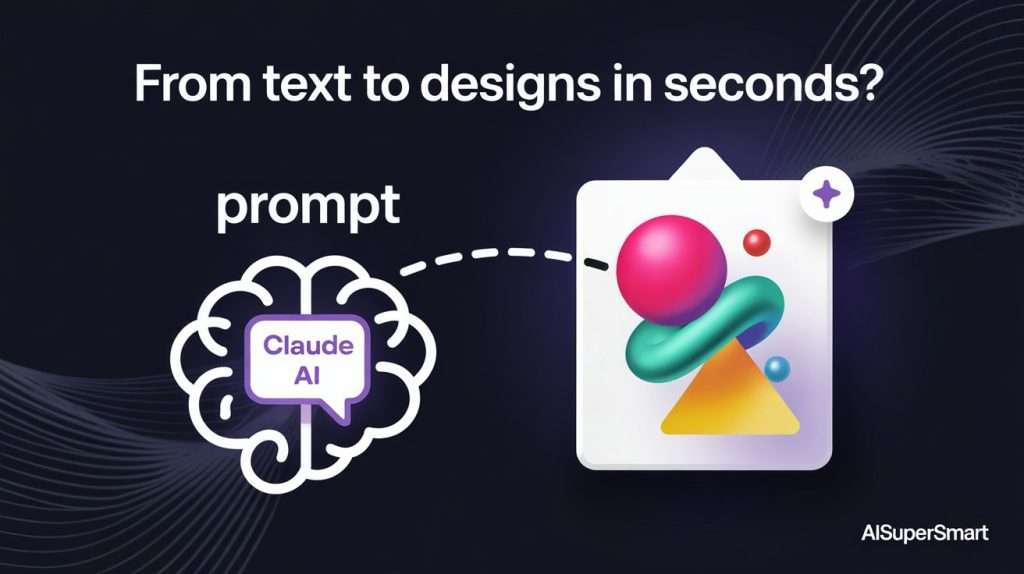
Let’s be honest. When you hear “AI integration,” half of you thinks “amazing,” and the other half thinks “great, another gimmick.” When I heard Claude was now inside Canva, I had the exact same thought. Is this actually going to help me create better designs faster, or is it just a fancy way to search for templates?
I spent a full day putting it to the test on a real-world project to see if it could handle a practical workflow.
- What It Is: Claude in Canva acts like a creative assistant. You give it a text prompt describing what you need, and it suggests existing Canva templates to start with.
- Best For: Quickly brainstorming ideas and overcoming “blank page” syndrome. It’s fantastic for generating a bunch of starting points for social posts, posters, or presentations.
- Where It Falls Short: It doesn’t create new designs from scratch. You still need to do the design work of customizing the template it suggests.
- My Key Tip: Be incredibly specific in your prompts. Don’t just say “a logo”; say “a minimalist logo for a coffee shop called ‘The Daily Grind’ using earthy tones and a coffee bean icon.”
First, What Exactly Is the Claude and Canva Integration? (And What It’s Not)
Before I show you what I made, it’s important to get one thing straight. This isn’t a text-to-image generator like Midjourney. You can’t type “a photorealistic cat wearing a spacesuit” and have it magically appear.
It’s a “Creative Brief” Assistant, Not a Magic Designer
Think of Claude as your new creative intern. You give it a brief—an idea for a design—and it runs to Canva’s massive library of over a million templates and brings back a handful it thinks are a good fit. The real magic is in its ability to understand natural language. Instead of you trying to guess the right keywords to search for in Canva (“modern poster blue sale”), you can just tell Claude what’s on your mind.

The goal is to kickstart your process, not finish it. You still have to pick a template and make it your own.
How It’s Different from Canva’s Built-in “Magic Design”
You might be thinking, “Wait, doesn’t Canva already have this?” Kind of. Canva’s own Magic Design feature is great, but it’s more focused on generating designs from an image you upload or a very short text prompt.
I’ve found that Claude is better at the initial brainstorming and idea generation phase. You can have more of a conversation with it. For example, you can ask it for “five different ideas for an Instagram post about the benefits of coffee,” and it will give you conceptual ideas and then find templates to match.
My Mission: Building a “Local Coffee Shop” Brand Kit From a Single Prompt
To give this a fair shot, I decided to build a simple brand kit for a fictional coffee shop called “The Daily Grind.” My goal was to see if I could create a logo, a social media post, and a printed menu, all starting from the same Claude integration.
The Starting Point: A Simple Idea
I opened a blank Canva design, found the “Claude” app in the left-hand menu, and connected my account. Then, I started with a very simple, very human prompt.

Round 1: Generating a Logo – The Good, The Bad, and The Ugly
A logo is the heart of a brand, so I started there. This is where I hit my first wall.
My First Prompt & The “Generic” Results
My initial prompt was just “a logo for a coffee shop called The Daily Grind.” The results were… fine. They were definitely coffee shop logos, but they felt incredibly generic. It looked like Claude just searched for “coffee logo” and showed me the top results. Nothing felt special.
How I Refined My Prompt for Better Logo Concepts
This is where I had my “aha!” moment. You have to treat Claude like a real designer who needs a detailed brief. I tried again, but this time I got way more specific.
Here’s the exact prompt I used:
“Generate logo ideas for a coffee shop called ‘The Daily Grind’. The vibe should be modern, minimalist, and welcoming. I’d like to see concepts that use earthy tones like brown, cream, and green. Please include a simple icon, maybe an abstract coffee bean or a steaming mug.”
The difference was night and day. The suggestions were suddenly much closer to my vision. It pulled templates with the right color palettes and the kind of clean, modern fonts I was looking for.

Round 2: Creating Social Media Posts That Don’t Look AI-Generated
With a logo concept chosen and customized, I moved on to social media. Could Claude help me plan and design my content?
Asking Claude for a “Weekly Content Calendar” Idea
Instead of just asking for a design, I asked Claude to act like a social media manager. My prompt: “Give me a 3-day Instagram content plan for my coffee shop, The Daily Grind.”
It spit out a surprisingly solid plan:
- Monday: A motivational quote about coffee.
- Tuesday: A “Meet the Barista” post.
- Wednesday: A special offer on pastries.
For each idea, it suggested a handful of templates. This was genuinely useful. It wasn’t just finding designs; it was helping me brainstorm the content itself.
From Idea to Instagram Post: My Step-by-Step Workflow
I picked the “Motivational Monday” idea. Claude suggested a few quote templates. I chose one, dropped in my new logo, changed the colors to match my brand kit, and rewrote the text. The whole process took maybe five minutes. This is where the integration truly shines: speed.

My Pro Tip for Getting Cohesive Designs
Once you customize your first design (like the Monday post), use Canva’s “Style” tool. You can copy the style (colors and fonts) from your finished design and apply it to the next template Claude suggests. This is the fastest way I found to create a cohesive set of visuals that all feel like they belong to the same brand.
Round 3: Can It Handle Print? Putting It to the “Menu Design” Test
Okay, social posts are one thing. But what about something more complex, like a printed menu?
The Prompt I Used to Generate a Trifold Menu
I kept the same conversational style. My prompt was: “I need a design for a printed, trifold menu. It should have sections for Hot Coffee, Iced Coffee, Pastries, and Sandwiches. The style should match my modern, minimalist brand.”
Claude understood the “trifold” instruction and provided templates with the correct column layout. This saved me a good amount of time searching and filtering.
The Limitations I Hit (And How I Worked Around Them)
Here’s where I saw the limits. Claude can’t populate the menu with my items. It just gives me the template. I still had to go in and manually type out every single latte and croissant, adjust the spacing, and fix the pricing. It’s a great starting point, but it’s not going to do the detail work for you.
The Most Common Mistakes to Avoid (Learned from My Mistakes)
I definitely fumbled a bit at the start. Here’s what I learned so you can skip the frustration.

- Mistake #1: Being Too Vague with Your Prompt. Don’t say “a poster.” Say “an A4 poster for a 25% off spring sale, featuring tulips and a bright, cheerful color palette.” The more detail you give, the better the suggestions.
- Mistake #2: Expecting a Finished Design Instantly. Remember, it’s a template finder. You are the designer. The real work happens after you select a template.
- Mistake #3: Forgetting to Customize the Templates. The biggest danger is creating something that looks just like a thousand other Canva designs. Always change the colors, fonts, and photos to make it uniquely yours.
So, What’s the Bottom Line? Is the Claude x Canva Integration Worth Using?
After a full day of testing, my verdict is in: it’s absolutely a worthwhile tool, but it’s not magic.
It won’t replace a human designer, and it won’t do the work for you. But it will demolish writer’s block and the “blank page” problem. It’s an excellent brainstorming partner that can help you get from a vague idea to a solid visual starting point in seconds. For marketers, solo creators, or small businesses who need to produce a lot of content quickly, this friction-free workflow is a huge win.
It’s not just a gadget. It’s a genuinely helpful assistant—as long as you know how to talk to it. 🙂
What have you created with it? Share your tips or frustrations in the comments below


 Login with Google