
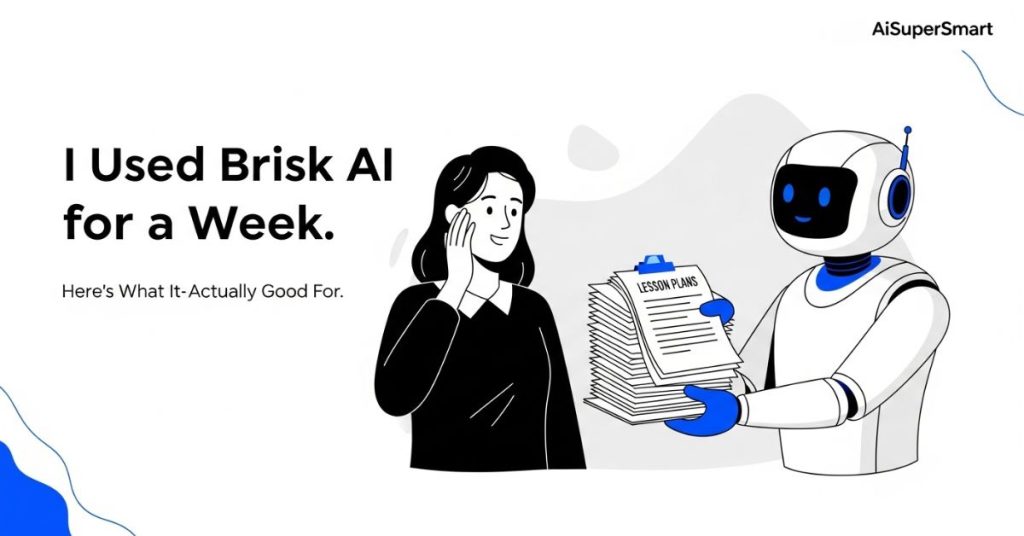
Every teacher knows that Sunday night feeling. You’re staring at a blank lesson plan, you have a mountain of articles to adapt for different reading levels, and the thought of writing personalized feedback on 30+ assignments feels impossible. I kept hearing chatter about a tool called Brisk AI being a solution, so I decided to put it to a real-world test to see if it could actually save me time or if it was just more tech hype.
After a full week of using it for everything from planning to feedback, here’s the straight answer on whether it’s worth your time.
[START BOX]
- What is it? Brisk is a free Chrome extension that plugs AI directly into the tools you already use, like Google Docs, Slides, and pretty much any website. It helps you create lesson plans, change the reading level of any text, generate quizzes, and draft feedback on student work.
- Best For: Instantly adapting an interesting article or text for multiple reading levels. It’s also fantastic for creating a solid first draft of a quiz or vocabulary list in under a minute.
- Biggest Limitation: The AI-generated feedback on student work is a bit generic. It’s a decent starting point, but you’ll definitely need to revise it to make it personal and truly impactful.
- My Key Tip: Use Brisk to crush the first 80% of your prep work. It’s an incredible assistant for the initial grunt work, which frees you up to do the creative, human part of teaching.
[END BOX]
First, Let’s Get It Set Up (It’s Free and Takes 30 Seconds)
Getting started was surprisingly easy. There’s no complex software to install.
Brisk is a Google Chrome extension, so you just head over to the Chrome Web Store, search for “Brisk Teaching,” and click “Add to Chrome.” You’ll grant it a few permissions (which are needed for it to work inside Google Docs and websites), and you’re done.

Once installed, a little Brisk icon appears in the bottom-right corner of your screen whenever you’re in a Google Doc or on a webpage with text. That’s your portal to all its features.
Putting Brisk to the Test: My Real-World Workflow
To give Brisk a fair shot, I decided to build a complete lesson activity from scratch. My source material was a fascinating article from the Smithsonian about the discovery of a lost city in the Amazon rainforest. My goal was to adapt this for my hypothetical 6th-grade social studies class.
Here’s exactly how I used Brisk, step-by-step.
Step 1: “Leveling Text” – Does It Actually Work?
The original Smithsonian article is great, but its vocabulary and sentence structure are way too complex for a typical 6th grader. Normally, I’d spend a good 20-30 minutes manually rewriting and simplifying it.
Instead, I clicked the Brisk icon on the page and selected “Change Reading Level.” I chose “6th Grade” from a dropdown menu and clicked “Change.”
In about ten seconds, Brisk generated a new Google Doc with the simplified text.

My take: I was genuinely impressed. It did a fantastic job of preserving the core information while simplifying the language. For example, it changed “a sprawling network of urban centers” to “a large group of connected cities.” Was it perfect? No, I still made a few minor tweaks to fit my teaching style, but it easily saved me 20 minutes of tedious rewriting. This feature alone is a huge win.
Step 2: “Create a Quiz” – From Article to Assessment in Clicks
Okay, now I have my leveled text. The next step is checking for understanding. I copied the new text into a fresh Google Doc.
I clicked the Brisk icon, but this time I chose the “Create” feature and then selected “Quiz.” It gave me options for multiple-choice, open-ended questions, and more. I went with a 5-question multiple-choice quiz.

My take: This is where Brisk feels like magic. In less than 30 seconds, it produced a five-question quiz complete with plausible incorrect answers (the “distractors”). It correctly identified key details from the article to build the questions around.
I did have to rephrase one question that was a little clunky, but that took me 15 seconds. Going from an article to a 95% complete quiz in under a minute is incredible. This feature is a massive time-saver for creating exit tickets, comprehension checks, and homework assignments.
Step 3: The “Give Feedback” Feature – Helpful Assistant or Generic Robot?
This was the feature I was most skeptical about. Meaningful feedback is personal and nuanced. Can an AI really do it?
To test it, I wrote a short, mediocre paragraph pretending to be a student summarizing the article. Then, I highlighted my student’s text, clicked the Brisk icon, and chose “Give Feedback.” It asked what I wanted to focus on, and I chose the standard “Glows & Grows” model (what they did well and where they can improve).

My take: This is the one feature where you need to keep your expectations in check. The feedback was… fine. It was positive, grammatically correct, and not wrong. But it was also very generic.
The “Glow” was a nice piece of encouragement, but the “Grow” lacked specificity. I would never just paste this and move on. However, I found it useful as a template. It reminded me to start with a positive and then suggest adding textual evidence. I ended up rewriting the “Grow” to point out exactly where in the text the student could find a detail to strengthen their argument.
So, it doesn’t write the feedback for you, but it can help you structure it faster.
Brisk AI vs. ChatGPT: What’s the Difference?
You might be thinking, “Can’t I just do all this with ChatGPT?”
Yes, you can. But the real advantage of Brisk is its integration. You don’t have to constantly switch tabs, copy text, paste it into ChatGPT, write a detailed prompt, and then copy the result back.
Brisk lives inside the tools you already work with. Changing the level of an article happens right on the web page. Creating a quiz happens right in the Google Doc. That seamless workflow is the whole point. For specific, recurring teacher tasks, Brisk is simply faster and more efficient than a general-purpose chatbot.
The Important Stuff: Cost and Student Privacy
Let’s talk about two things every teacher has to ask:
- Cost: As of right now, Brisk is free for individual teachers. They have a clear commitment to keeping the core product free.
- Privacy: This is the big one. Handing over student data to any tech company is a serious matter. I dug into their privacy policy, and I was relieved to see that they are very direct about this. Brisk states they are FERPA and COPPA compliant. According to their policy, they don’t own or sell your data or any student data. The work you create is yours. For any school tech, I always recommend reading the privacy policy yourself, but Brisk is thankfully very transparent here.
So, Is Brisk AI Worth It?
The bottom line is yes, Brisk AI is absolutely worth using. It’s not a robot that will replace you. It’s the super-efficient teaching assistant you wish you always had.
It automates the most monotonous parts of the job—rewriting texts, drafting quizzes, creating vocabulary lists. This doesn’t make you less of a teacher; it frees you up to spend more time on the things that actually matter, like designing engaging activities, working one-on-one with students, and providing thoughtful, human feedback.
My advice? Install it today—it literally takes less than a minute—and just try one thing. Find an article online and use the “Change Reading Level” feature. I have a feeling you’ll immediately see how much time you can get back.
Have you tried Brisk or another AI tool for your classroom? I’d love to hear what worked (or didn’t work) for you in the comments!

 Login with Google